Hi all,
I have a books very good about JSP. It's include all Lab step by step. I hope it is useful for you
Please, Download by link below
Lab 1. Developing Web Applications-An Overview
Lab 2. Using Java Server Pages (JSP) Tags
Lab 3. Using JSP ScriptlUsing JSP Scriptlet
Lab 4. Using JavaBeans in Java Server Pages
Lab 5. JSP Application Models
Lab 6. Session Management
Lab 7. Java Database Connectivity
Lab 8. Creating Web Applications
Lab 9. Introduction to Struts
Lab 10. Working with User Input
Lab 11. Using Models and ActionForms
Lab 12. Using Actions
Lab 13. Struts Tags
Lab 14. Lab Deliverable 14
Lab 15. Creating Custom Tags
Lab 16. Struts Validator Framework
Lab 17. Tiles Framework
Lab 18. Using Eclipse-1
Lab 19. Using Eclipse-2
Good luck!
Read more →
Monday, February 13, 2012
Monday, February 7, 2011
Share books JSP for everyone
I have some book JSP and Java. I want share for everyone. You can download link:
Download here
Note: I will update when new book.
Thank all! Read more →
Download here
Note: I will update when new book.
Thank all! Read more →
Wednesday, September 2, 2009
Write a program to input the new registration details to the Database. In addition, create a DSN to connect the JSP page to the database.
Write a program to input the new registration details to the Database. In addition, create a DSN to connect the JSP page to the database.
Solution:
The files used to run this application are:
1. index.jsp
2. details.jsp
3. Simple.jsp
4. SimpleResults.jsp
5. Signin.jsp
6. SigninFailed.jsp
7. ProcessSimpleAction.java
8. SuccessAction.java
9. SimpleActionForm.java
10.SigninActionForm.java
Enter the code in Notepad and save the file as index.jsp in %TOMCAT_HOME%/webapps/ marko.
Enter the code in Notepad and save the file as Simple.jsp in %TOMCAT_HOME%/webapps/ marko/simple/jsp.
Enter the code in Notepad and save the file as SimpleResults.jsp in %TOMCAT_HOME%/webapps/ marko/simple/jsp.
Enter the Java code in Notepad and save the file as SimpleActionForm.java. Compile the file from the command prompt and copy the class file in %TOMCAT_HOME%/webapps/marko/ WEB-INF/classes/MARKO.
Enter the Java code in Notepad and save the file as ProcessSimpleAction.java. Compile the file from the command prompt and copy the class file in %TOMCAT_HOME%/webapps/marko/ WEB-INF/classes/MARKO. Read more →
Solution:
The files used to run this application are:
1. index.jsp
2. details.jsp
3. Simple.jsp
4. SimpleResults.jsp
5. Signin.jsp
6. SigninFailed.jsp
7. ProcessSimpleAction.java
8. SuccessAction.java
9. SimpleActionForm.java
10.SigninActionForm.java
<html>
<head>
<title>Marko Bank</title>
</head>
<body>
<center><H1>Welcome to Marko Bank Home page</H1></center>
<br><br><br><br><a  href="prepareSimple.do">Register New
user</a><br>
<a href="prepareSignin.do">Sign in user</a><br>
</body>
</html>
Enter the code in Notepad and save the file as index.jsp in %TOMCAT_HOME%/webapps/ marko.
<%@ page language="java" contentType="text/html; charset=utf-8" %>
<%@ taglib uri="/WEB-INF/struts-html.tld" prefix="html" %>
<HTML>
<HEAD>
<TITLE> New User Registration form</TITLE>
</HEAD>
<CENTER><h1>New User Registration form</h1></CENTER>
<hr noshade="noshade"/>
<p>Enter information into the fields below. Your entries will be displayed when you Submit the form.
<br/>
This is just to demonstrate the Struts html tags. The information that you enter is discarded.</p>
<p>* = required field</p>
<hr noshade="noshade"/>
<html:form action="/processSimple">
<p>* Enter Username you wish to use? <br/><input type="text"
name="name" size="40" maxlength="50"/></p>
<p>* Enter Password:<br/><input type="password"
name="password" size="40" maxlength="50"/></p>
<p>Select the type of account you want to open?:<br/>
<select name="accType">
<option value="savings">Savings</option>
<option value="current">Current</option>
</select>
</p>
<p><input type="checkbox" name="referral"/>Do you have a
referral in this bank?</p>
<p>What banking facility inspired you to open account in this
bank?:<br />
<INPUT TYPE="radio" NAME="inspired" value="Phone
banking">Phone banking<br>
<INPUT TYPE="radio" NAME="inspired" value="ATM Card">ATM
Card.<br>
<INPUT TYPE="radio"  NAME="inspired" value="Debit  Card">Debit
Card<br>
<INPUT TYPE="radio" NAME="inspired" value="Online
Banking">Online Banking<br>
<INPUT TYPE="radio" NAME="inspired" value="All of the
choices">All of the above.
</p>
<p>Please enter below your professional details.:<br />
<textarea name="profDetails"  cols="40"  rows="6"/></textarea>
</p>
<hr noshade="noshade" />
<p>
<input type="submit" value="Submit" />
<input type="submit" value="Cancel"/>
</p>
</html:form>
</body>
</html>
Enter the code in Notepad and save the file as Simple.jsp in %TOMCAT_HOME%/webapps/ marko/simple/jsp.
<%@ page language="java" contentType="text/html; charset=utf-8" %>
<%@ taglib uri="/WEB-INF/struts-bean.tld" prefix="bean" %>


<html>
<head>
<title>Marko Bank Registration Confirmation</title>
</head>
<body>
<CENTER><h1>Registration Results</h1></CENTER>
<hr noshade="noshade"/>
<p>Hello <bean:write  name="simpleForm" property="name"  />,</p>
<p><strong>Your Password is  :</strong> <bean:write  name="simpleForm"  property="password" /></p>
<p><strong>Your account type is  :</strong> <bean:write  name="simpleForm" property="accType"  /></p>
<p><strong>You have a referral this  is:</strong> <bean:write  name="simpleForm"  property="referral" /></p>
<p><strong>In Marko bank you like the following:</strong>
    <bean:write    name="simpleForm" property="inspired" />
</p>
<p><strong>Your professional details are :</strong></p>
<p><bean:write name="simpleForm"  property="profDetails"  filter="false"/></p>

<p><%=request.getAttribute("message")%></p>
</body>
</html>
Enter the code in Notepad and save the file as SimpleResults.jsp in %TOMCAT_HOME%/webapps/ marko/simple/jsp.
package MARKO;

import javax.servlet.http.HttpServletRequest;
import org.apache.struts.action.ActionError;
import org.apache.struts.action.ActionErrors;
import org.apache.struts.action.ActionForm;
import org.apache.struts.action.ActionMapping;

public class SimpleActionForm extends ActionForm
{
private String name = null;
private String password = null;
private String accType = null;
private boolean referral = false;
private String inspired = null;
private String profDetails = null;
public SimpleActionForm()
{
super();
}
public void reset(ActionMapping mapping, HttpServletRequest
request)
{
this.name = null;
this.password = null;
this.accType = null;
this.referral = false;
this.inspired = null;
this.profDetails = null;
}
public String getName()
{
return name;
}
public String getPassword()
{
return password;
}
public String getAccType()
{
return accType;
}
public boolean getReferral()
{
return referral;
}
public String getProfDetails()
{
return profDetails;
}
public String getInspired()
{
return inspired;
}
public void setName(String name)
{
this.name = name;
}
public void setPassword(String password)
{
this.password = password;
}
public void setAccType(String accType)
{
this.accType = accType;
}
public void setReferral(boolean Referral)
{
this.referral = Referral;
}
public void setInspired(String inspired)
{
this.inspired = inspired;
}
public void setProfDetails(String profDetails)
{
this.profDetails = profDetails;
}
}
Enter the Java code in Notepad and save the file as SimpleActionForm.java. Compile the file from the command prompt and copy the class file in %TOMCAT_HOME%/webapps/marko/ WEB-INF/classes/MARKO.
package MARKO;
import javax.servlet.http.HttpServletRequest;
import javax.servlet.http.HttpServletResponse;
import org.apache.struts.action.Action;
import org.apache.struts.action.ActionForm;
import org.apache.struts.action.ActionForward;
import org.apache.struts.action.ActionMapping;
public class ProcessSimpleAction extends Action
{
public ProcessSimpleAction()
{
super();
}
public ActionForward execute(ActionMapping mapping,
ActionForm form, HttpServletRequest request,
HttpServletResponse response) throws Exception
{
if (isCancelled(request))
{
return mapping.findForward("home");
}
request.setAttribute("message",saveRecords(request));
return mapping.findForward("success");
}
public String saveRecords(HttpServletRequest request)
{
String name = request.getParameter("name");
String password = request.getParameter("password");
String accType = request.getParameter("accType");
String referral = request.getParameter("referral");
String inspired = request.getParameter("inspired");
String profDetails = request.getParameter("profDetails");
try
{
//javax.sql.DataSource dataSource;
//java.sql.Connection myConnection;
//dataSource = getDataSource(request);
//myConnection = dataSource.getConnection();
Class.forName("sun.jdbc.odbc.JdbcOdbcDriver");
java.sql.Connection connection =
java.sql.DriverManager.getConnection("jdbc:odbc:userd");
java.sql.Statement statement =
connection.createStatement();
String query_car = "insert into userDB values('" + name +
"','" + password + "','" + accType + "','" + referral +
"','" + inspired + "','" + profDetails + "')";
statement.execute(query_car);
connection.close();
}
catch(Exception e)
{
e.printStackTrace();
return "<CENTER><h3 STYLE='COLOR:RED'>Error in saving the
records... Please try again</h3></CENTER>";
}
return "<CENTER><h3>Records Saved Sucessfullly</h3>
<CENTER>";
}
}
Enter the Java code in Notepad and save the file as ProcessSimpleAction.java. Compile the file from the command prompt and copy the class file in %TOMCAT_HOME%/webapps/marko/ WEB-INF/classes/MARKO. Read more →
Friday, June 26, 2009
Create a user details page
Create a user details page. The page should have First Name, Last Name, and Email address fields. On clicking the submit button, a new Web page should display the details entered by the user.
Hint: Use getAttribute to display the user details.
Solution:
The files used in this exercise are:
1. index.jsp
2. displayname.jsp
3. NameForm.java
4. NameAction.java
Enter the code in Notepad and save the file as index.jsp in %TOMCAT_HOME%/webapps/ details.
Enter the code in Notepad and save the file as displayname.jsp in %TOMCAT_HOME%/ webapps/details.
Enter the Java code in Notepad and save the file as NameForm.java. Compile the file from the command prompt and copy the class file in %TOMCAT_HOME%/webapps/details/WEB-INF/classes/example.
Enter the Java code in Notepad and save the file as NameAction.java. Compile the file from the command prompt and copy the class file in %TOMCAT_HOME%/webapps/details/WEB-INF/classes/example.
Update the struts-config.xml file used in the Web application.
The output of the program is as shown in Figure 17.1.
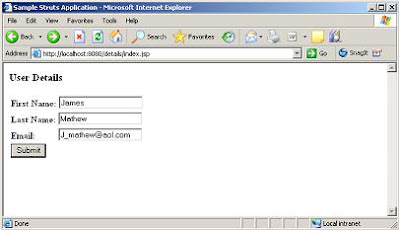 Figure 17.1: Accepting User Details
The output of the program that displays user details is as shown in Figure 17.2.
 Figure 17.2: Details Page
Read more →
Hint: Use getAttribute to display the user details.
Solution:
The files used in this exercise are:
1. index.jsp
2. displayname.jsp
3. NameForm.java
4. NameAction.java
<%@ page language="java" %>
<%@ page language="java" %>
<%@ taglib uri="/WEB-INF/struts-html.tld" prefix="html" %>

<html>
<head>
<title>Sample Struts Application</title>
</head>
<body>
<h3> User Details</h3>
<html:form action="Name" name="nameForm" type="example.NameForm" >
<table width="80%" border="0">

<tr>
<td><b>First Name:</b>
<html:text property="name" />
</td>
</tr>

<tr>
<td><b>Last Name:</b>
<html:text property="last" />
</td>
</tr>

<tr>
<td>
<b>Email: </b>
<html:text property="email" />
</td>
</tr>

<tr>
<td><html:submit />
</td>
</tr>
</table>

</html:form>
</body>
</html>
Enter the code in Notepad and save the file as index.jsp in %TOMCAT_HOME%/webapps/ details.
<html>
<head>
<title>Sample Struts Display Name</title>
</head>
<body>
<h2> Confirm the Details You Entered</h2>
<table width="80%" border="0">

<tr>
<td>
<b>First Name:</b><%= request.getAttribute("NAME") %>
</td>
</tr>

<tr>
<td>
<b>Last Name:</b><%= request.getAttribute("LAST") %>
</td>
</tr>

<tr>
<td>
<b>Email:</b><%= request.getAttribute("EMAIL") %></td>
</tr>

</table>
</body>
</html>
Enter the code in Notepad and save the file as displayname.jsp in %TOMCAT_HOME%/ webapps/details.
package example;
import javax.servlet.http.HttpServletRequest;
import org.apache.struts.action.ActionForm;
import org.apache.struts.action.ActionMapping;

public class NameForm extends ActionForm
{
private String name = null;
private String last = null;
private String email = null;

public String getName()
{
return (name);
}
public String getLast()
{
return (last);
}
public String getEmail()
{
return (email);
}
public void setName(String name)
{
this.name = name;
}
public void setLast(String last)
{
this.last = last;
}
public void setEmail(String email)
{
this.email = email;
}
public void reset(ActionMapping mapping, HttpServletRequest request)
{
this.name = null;
this.last= null;
this.email=null;
}
}
Enter the Java code in Notepad and save the file as NameForm.java. Compile the file from the command prompt and copy the class file in %TOMCAT_HOME%/webapps/details/WEB-INF/classes/example.
package example;
import java.io.IOException;
import javax.servlet.ServletException;
import javax.servlet.http.HttpServletRequest;
import javax.servlet.http.HttpServletResponse;
import org.apache.struts.action.Action;
import org.apache.struts.action.ActionForm;
import org.apache.struts.action.ActionForward;
import org.apache.struts.action.ActionMapping;

public class NameAction extends Action
{
public ActionForward execute(ActionMapping mapping, ActionForm form,HttpServletRequest request, HttpServletResponse response)
throws IOException, ServletException
{
String target = new String("success");
String name=null;
String last=null;
String email=null;

if ( form != null )
{
NameForm nameForm = (NameForm)form;
NameForm lastForm = (NameForm)form;
NameForm emailForm = (NameForm)form;

name = nameForm.getName();
last = lastForm.getLast();
email = emailForm.getEmail();
}

if ( name == null )
{
target = new String("failure");
}
else
{
request.setAttribute("NAME", name);
request.setAttribute("LAST", last);
request.setAttribute("EMAIL", email);
}
return (mapping.findForward(target));
}
}
Enter the Java code in Notepad and save the file as NameAction.java. Compile the file from the command prompt and copy the class file in %TOMCAT_HOME%/webapps/details/WEB-INF/classes/example.
<?xml version="1.0" encoding="ISO-8859-1" ?>
<!DOCTYPE struts-config PUBLIC
"-//Apache Software Foundation//DTD Struts Configuration 1.1//EN"
"http://jakarta.apache.org/struts/dtds/struts-config_1_1.dtd">

<struts-config>

<!-- Form Bean Definitions -->

<form-beans>

<form-bean name="nameForm" type="example.NameForm"/>

</form-beans>

<!-- Action Mapping Definitions -->

<action-mappings>

<action path="/Name" type="example.NameAction" name="nameForm" input="/index.jsp">

<forward name="success" path="/displayname.jsp"/>

<forward name="failure" path="/index.jsp"/>

</action>

</action-mappings>
</struts-config>
Update the struts-config.xml file used in the Web application.
The output of the program is as shown in Figure 17.1.
 Figure 17.1: Accepting User Details
The output of the program that displays user details is as shown in Figure 17.2.
 Figure 17.2: Details Page
Read more →
Saturday, June 20, 2009
Create a Login form using struts
Create a Login form using struts. Create two text fields in the Web page, and name the fields as User and Password. The page includes a Submit button. After the user clicks the Submit button, a page should appear indicating that the user is a valid user.
The files used in this exercise are:
1. cust.jsp
2. valid.jsp
3. CustForm.java
4. CustAction.java
Enter the code in Notepad and save the file as cust.jsp in %TOMCAT_HOME%/webapps/ struts-test.
Valid Use
Enter the code in Notepad and save the file as valid.jsp in %TOMCAT_HOME%/webapps/ struts-test.
Enter the Java code in Notepad and save the file as CustForm.java. Compile the file from the command prompt and copy the class file in %TOMCAT_HOME%/webapps/struts-test/WEB-INF/classes/common/test.
Enter the Java code in Notepad and save the file as CustAction.java. Compile the file from the command prompt and copy the class file in %TOMCAT_HOME%/webapps/struts-test/WEB-INF/classes/common/test.
Update the struts-config.xml file used in the Web application
The output of the program is as shown in Figure 16.3.

After the user clicks the Submit button, the output of the program is as shown in Figure 16.2.
 Figure 16.4: Valid user page
Read more →
The files used in this exercise are:
1. cust.jsp
2. valid.jsp
3. CustForm.java
4. CustAction.java
<%@ taglib uri = "/WEB-INF/struts-html.tld" prefix="html" %>
<html>
<head> <title>Testing struts</title> </head>
<body>
<html:form action = "cust.do" > <center>
<b>User:</b> <html:text property = "first" />
<b>Password:</b><html:password property = "pwd" />
<html:submit /> </center>
</html:form>
</body>
</html>
Enter the code in Notepad and save the file as cust.jsp in %TOMCAT_HOME%/webapps/ struts-test.
<html>
<head><title>Valid User</title>
</head>
<body>
<center><h2><b>VALID USER</b></h2></center>
</body>
</html>
Valid Use
Enter the code in Notepad and save the file as valid.jsp in %TOMCAT_HOME%/webapps/ struts-test.
package common.test;
import javax.servlet.http.*;
import org.apache.struts.action.*;

public class CustForm extends ActionForm
{
private String mFirst = null;
private String mPwd = null;

public String getFirst() { return mFirst; }
public void setFirst(String aFirst) { mFirst = aFirst; }

public String getPwd() { return mPwd; }
public void setPwd(String aPwd) { mPwd = aPwd; }
public void reset(ActionMapping aMapping, HttpServletRequest aRequest)
{
mFirst = null;
mPwd = null;
}
}
Enter the Java code in Notepad and save the file as CustForm.java. Compile the file from the command prompt and copy the class file in %TOMCAT_HOME%/webapps/struts-test/WEB-INF/classes/common/test.
package common.test;
import javax.servlet.*;
import javax.servlet.http.*;
import org.apache.struts.action.*;

public class CustAction extends Action
{

public ActionForward perform(ActionMapping aMapping, ActionForm aForm,HttpServletRequest aRequest, HttpServletResponse aResponse)throws ServletException
{
CustForm f = (CustForm) aForm;
String first = f.getFirst();
String last = f.getPwd();
return aMapping.findForward("saved");
}
}
Enter the Java code in Notepad and save the file as CustAction.java. Compile the file from the command prompt and copy the class file in %TOMCAT_HOME%/webapps/struts-test/WEB-INF/classes/common/test.
<?xml version="1.0" encoding="ISO-8859-1" ?>
<!DOCTYPE struts-config PUBLIC
"-//Apache Software Foundation//DTD Struts Configuration 1.0//EN" "http://jakarta.apache.org/struts/dtds/struts-config_1_0.dtd">
<struts-config>
<!-- Form Bean Definitions -->
<form-beans>
<form-bean name = "custForm" type = "common.test.CustForm"/>
</form-beans>
<!-- Global Forward Definitions -->
<global-forwards>
<forward name = "start" path = "/index.jsp"/>
</global-forwards>
<!-- Action Mapping Definitions -->
<action-mappings>
<action path = "/cust" type = "common.test.CustAction" name = "custForm">
<forward name = "saved" path = "/valid.jsp"/>
</action>
</action-mappings>
</struts-config>
Update the struts-config.xml file used in the Web application
The output of the program is as shown in Figure 16.3.

Figure 16.3: Login page
After the user clicks the Submit button, the output of the program is as shown in Figure 16.2.
 Figure 16.4: Valid user page
Create a struts-blank.war blank application
1. Create a struts-blank.war blank application. Use the blank application to create a Web page that displays the title and author of a book. The page includes a Submit button. After the user clicks the Submit button, a page should appear indicating that the request is being processed. The example requires two JSP pages and two JavaBeans. Update struts-config.xml file to associate the Web pages with the JavaBeans.
Solution:
The files used in this exercise are:
1. test.jsp
2. searching.jsp
3. BookForm.java
4. BookAction.java
Enter the code in Notepad and save the file as test.jsp in %TOMCAT_HOME%/webapps/ struts-test.
Enter the code in Notepad and save the file as searching.jsp in %TOMCAT_HOME%/webapps/ struts-test.
Enter the Java code in Notepad and save the file as BookForm.java. Compile the file from the command prompt and copy the class file in %TOMCAT_HOME%/webapps/struts-test/WEB-INF/classes/com.
Enter the Java code in Notepad and save the file as BookForm.java. Compile the file from the command prompt and copy the class file in %TOMCAT_HOME%/webapps/struts-test/WEB-INF/classes/com.
Enter the Java code in Notepad and save the file as BookAction.java. Compile the file from the command prompt and copy the class file in %TOMCAT_HOME%/webapps/struts-test/WEB-INF/classes/com.
Update the struts-config.xml file used in the Web application.
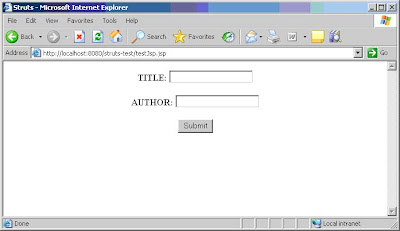
The output of the program is as shown in Figure 16.1.
Solution:
The files used in this exercise are:
1. test.jsp
2. searching.jsp
3. BookForm.java
4. BookAction.java
<%@ taglib uri = "/WEB-INF/struts-html.tld" prefix="html" %>
<html>
<head> <title>Struts</title>
</head>
<body>
<html:form action="book.do" ><center>
<b>TITLE:<b> <html:text property ="title" /><p>
<b>AUTHOR:<b> <html:text property ="author" /><br> <p>
<html:submit /></center>
</html:form>
</body>
</html>
Enter the code in Notepad and save the file as test.jsp in %TOMCAT_HOME%/webapps/ struts-test.
<html>
<head><title>Searching</title>
</head>
<body>
<h3><b>Searching.....<b></h3>
</body>
</html>
Enter the code in Notepad and save the file as searching.jsp in %TOMCAT_HOME%/webapps/ struts-test.
package com;
import javax.servlet.http.*;
import org.apache.struts.action.*;

public class BookForm extends ActionForm
{
private String nTitle = null;
private String nAuthor = null;

public String getTitle() { return nTitle; }
public void setTitle(String aTitle) { nTitle = aTitle; }

public String getAuthor() { return nAuthor; }
public void setAuthor(String aAuthor) { nAuthor = aAuthor; }
public void reset(ActionMapping aMapping, HttpServletRequest aRequest)
{
nTitle = null;
nAuthor = null;
}
}
Enter the Java code in Notepad and save the file as BookForm.java. Compile the file from the command prompt and copy the class file in %TOMCAT_HOME%/webapps/struts-test/WEB-INF/classes/com.
package com;
import javax.servlet.*;
import javax.servlet.http.*;
import org.apache.struts.action.*;

public class BookAction extends Action
{
public ActionForward perform(ActionMapping aMapping, ActionForm aForm,HttpServletRequest aRequest, HttpServletResponse aResponse)throws ServletException
{
BookForm f = (BookForm) aForm;
String title = f.getTitle();
String author = f.getAuthor();
return aMapping.findForward("saved");
}
}
Enter the Java code in Notepad and save the file as BookForm.java. Compile the file from the command prompt and copy the class file in %TOMCAT_HOME%/webapps/struts-test/WEB-INF/classes/com.
Enter the Java code in Notepad and save the file as BookAction.java. Compile the file from the command prompt and copy the class file in %TOMCAT_HOME%/webapps/struts-test/WEB-INF/classes/com.
<?xml version="1.0" encoding="ISO-8859-1" ?>
<!DOCTYPE struts-config PUBLIC
"-//Apache Software Foundation//DTD Struts Configuration 1.0//EN" "http://jakarta.apache.org/struts/dtds/struts-config_1_0.dtd">
<struts-config>
<!-- Form Bean Definitions -->
<form-beans>
<form-bean name = "bookForm" type = "com.bookForm"/>
</form-beans>
<!-- Global Forward Definitions -->
<global-forwards>
<forward name = "start" path = "/index.jsp"/>
</global-forwards>
<!-- Action Mapping Definitions -->
<action-mappings>
<action path = "/book" type = "com.bookAction" name = "bookForm">
<forward name = "saved" path = "/greeting.jsp"/>
</action>
</action-mappings>
</struts-config>
Update the struts-config.xml file used in the Web application.
The output of the program is as shown in Figure 16.1.

Figure 16.1: Input page
After the user clicks the Submit button, the output of the program is as shown in Figure 16.2.
Read more →
After the user clicks the Submit button, the output of the program is as shown in Figure 16.2.
 Figure 16.2: Saved page
Wednesday, May 6, 2009
User Login in JSP
Every website and software in the world is having login facility. Login gives access rights to user and defines their role in website and application. Nobody can access website if they failure in proving their identity on website or application.
Registration is first step by login to website. We will keep focus on only user login in JSP.
User login contain two fields, first one important User ID. This is unique ID provided by site owner or software application itself or most of provide facility to choose user id themselves on their website of web application.
Second is password, it is secret field and user have to keep remember without sharing with anybody. This field gives authentication to user to login on the website. User ID and password keep isolate one user to other users.
We have three forms of JSP pages.
login.jsp take input from user, mainly user id and password then submitted to server for further processing. This process handles with database. Database has a SQL table name usermaster. Usermaster table is having number of fields which are not using in login process. We need user id, password, user type, user level, first name, last name.
User type field in database explain user type as e.g. admin role, power user role, moderator role, end user role. User levels field explain about permission defined to user. Read, write, update, view are permission on user can work accordingly to these permission. This certainly is not using in current login facility. This can be useful after user login successfully and work in application.
SQL usermaster Table
login.jsp
doLogin.jsp mainly deals with database to check user id and password is matched with user trying to provide to get access from the server.
Our password field is encrypted with mysql password function. To decrypt password we have to use mysql password function again. If you are using Oracle or other database password function come with different name. Only user knows exact password and anybody can find out real password of the user. This increases the security of the system and reduces the hacking.
doLogin.jsp
doLogin.jsp match user id and password with database record. If record is matched with user field and password. It will set user id, user type, user level, first name, last name in session. This can access from session in further in application. It will finish processing and return to success.jsp page.
success.jsp
If user id and password is not matched, it will return back to login.jsp page and print error message to user, user id and password is not matched.
The example of login is given with source code, login.jsp, doLogin.jsp and success.jsp. Read more →
Registration is first step by login to website. We will keep focus on only user login in JSP.
User login contain two fields, first one important User ID. This is unique ID provided by site owner or software application itself or most of provide facility to choose user id themselves on their website of web application.
Second is password, it is secret field and user have to keep remember without sharing with anybody. This field gives authentication to user to login on the website. User ID and password keep isolate one user to other users.
We have three forms of JSP pages.
login.jsp take input from user, mainly user id and password then submitted to server for further processing. This process handles with database. Database has a SQL table name usermaster. Usermaster table is having number of fields which are not using in login process. We need user id, password, user type, user level, first name, last name.
User type field in database explain user type as e.g. admin role, power user role, moderator role, end user role. User levels field explain about permission defined to user. Read, write, update, view are permission on user can work accordingly to these permission. This certainly is not using in current login facility. This can be useful after user login successfully and work in application.
SQL usermaster Table
    CREATE TABLE `usermaster` (
    `sUserID` varchar(45) NOT NULL,
    `sEmail` varchar(250) NOT NULL,
    `sFirstName` varchar(45) NOT NULL,
    `sLastName` varchar(45) NOT NULL,
    `iDOB` datetime NOT NULL,
    `cGender` varchar(45) NOT NULL,
    `iCountryID` int(10) unsigned NOT NULL,
    `iCityID` varchar(45) NOT NULL,
    `iUserType` varchar(45) DEFAULT NULL,
    `iUserLevel` varchar(45) DEFAULT NULL,
    `sPassword` varchar(45) NOT NULL,
    `sForgetPassword` varchar(45) DEFAULT NULL,
    `sContact` bigint(20) unsigned NOT NULL,
    `sCreatedBy` varchar(45) DEFAULT NULL,
    `dCreatedDate` datetime DEFAULT NULL,
    `sModifiedBy` varchar(45) DEFAULT NULL,
    `sModifiedDate` datetime DEFAULT NULL,
    `sStatus` varchar(45) NOT NULL,
    PRIMARY KEY (`sUserID`),
    UNIQUE KEY `sEmail` (`sEmail`)
    );
login.jsp
    <%@ page contentType="text/html; charset=iso-8859-1" language="java" %>
    <%
    String error=request.getParameter("error");
    if(error==null || error=="null"){
    error="";
    }
    %>
    <html>
    <head>
    <title>User Login JSP</title>
    <script>
    function trim(s)
    {
    return s.replace( /^\s*/, "" ).replace( /\s*$/, "" );
    }

    function validate()
    {
    if(trim(document.frmLogin.sUserName.value)=="")
    {
    alert("Login empty");
    document.frmLogin.sUserName.focus();
    return false;
    }
    else if(trim(document.frmLogin.sPwd.value)=="")
    {
    alert("password empty");
    document.frmLogin.sPwd.focus();
    return false;
    }
    }
    </script>
    </head>

    <body>
    <div><%=error%></div>
    <form name="frmLogin" onSubmit="return validate();" action="doLogin.jsp" method="post">
    User Name <input type="text" name="sUserName" /><br />
    Password <input type="password" name="sPwd" /><br />
    <input type="submit" name="sSubmit" value="Submit" />
    </form>
    </body>
    </html>
doLogin.jsp mainly deals with database to check user id and password is matched with user trying to provide to get access from the server.
Our password field is encrypted with mysql password function. To decrypt password we have to use mysql password function again. If you are using Oracle or other database password function come with different name. Only user knows exact password and anybody can find out real password of the user. This increases the security of the system and reduces the hacking.
doLogin.jsp
    <%@ page language="java" import="java.sql.*" errorPage="" %>
    <%
    Connection conn = null;
    Class.forName("com.mysql.jdbc.Driver").newInstance();
    conn = DriverManager.getConnection("jdbc:mysql://localhost:3306/database","root", "");

    ResultSet rsdoLogin = null;
    PreparedStatement psdoLogin=null;

    String sUserID=request.getParameter("sUserName");
    String sPassword=request.getParameter("sPwd");
    String message="User login successfully ";

    try{
    String sqlOption="SELECT * FROM usermaster where"
    +" sUserID=? and sPassword=password(?) and sStatus=’A'";

    psdoLogin=conn.prepareStatement(sqlOption);
    psdoLogin.setString(1,sUserID);
    psdoLogin.setString(2,sPassword);

    rsdoLogin=psdoLogin.executeQuery();

    if(rsdoLogin.next())
    {
    String sUserName=rsdoLogin.getString("sFirstName")+" "+rsdoLogin.getString("sLastName");

    session.setAttribute("sUserID",rsdoLogin.getString("sUserID"));
    session.setAttribute("iUserType",rsdoLogin.getString("iUserType"));
    session.setAttribute("iUserLevel",rsdoLogin.getString("iUserLevel"));
    session.setAttribute("sUserName",sUserName);

    response.sendRedirect("success.jsp?error="+message);
    }
    else
    {
    message="No user or password matched" ;
    response.sendRedirect("login.jsp?error="+message);
    }
    }
    catch(Exception e)
    {
    e.printStackTrace();
    }


    /// close object and connection
    try{
    if(psdoLogin!=null){
    psdoLogin.close();
    }
    if(rsdoLogin!=null){
    rsdoLogin.close();
    }

    if(conn!=null){
    conn.close();
    }
    }
    catch(Exception e)
    {
    e.printStackTrace();
    }

    %>
doLogin.jsp match user id and password with database record. If record is matched with user field and password. It will set user id, user type, user level, first name, last name in session. This can access from session in further in application. It will finish processing and return to success.jsp page.
success.jsp
<%@ page contentType="text/html; charset=iso-8859-1" language="java"%>

    <html>
    <head>
    <title>Successfully Login by JSP</title>
    </head>
    <body>
    Successfully login by JSP<br />
    Session Value<br />
    <%
    out.print("UserName :"+session.getAttribute("sUserID")+"<br>");
    out.print("First & Last Name :"+session.getAttribute("sUserName"));
    %>
    </body>
    </html>
If user id and password is not matched, it will return back to login.jsp page and print error message to user, user id and password is not matched.
The example of login is given with source code, login.jsp, doLogin.jsp and success.jsp. Read more →
Subscribe to:
Posts (Atom)